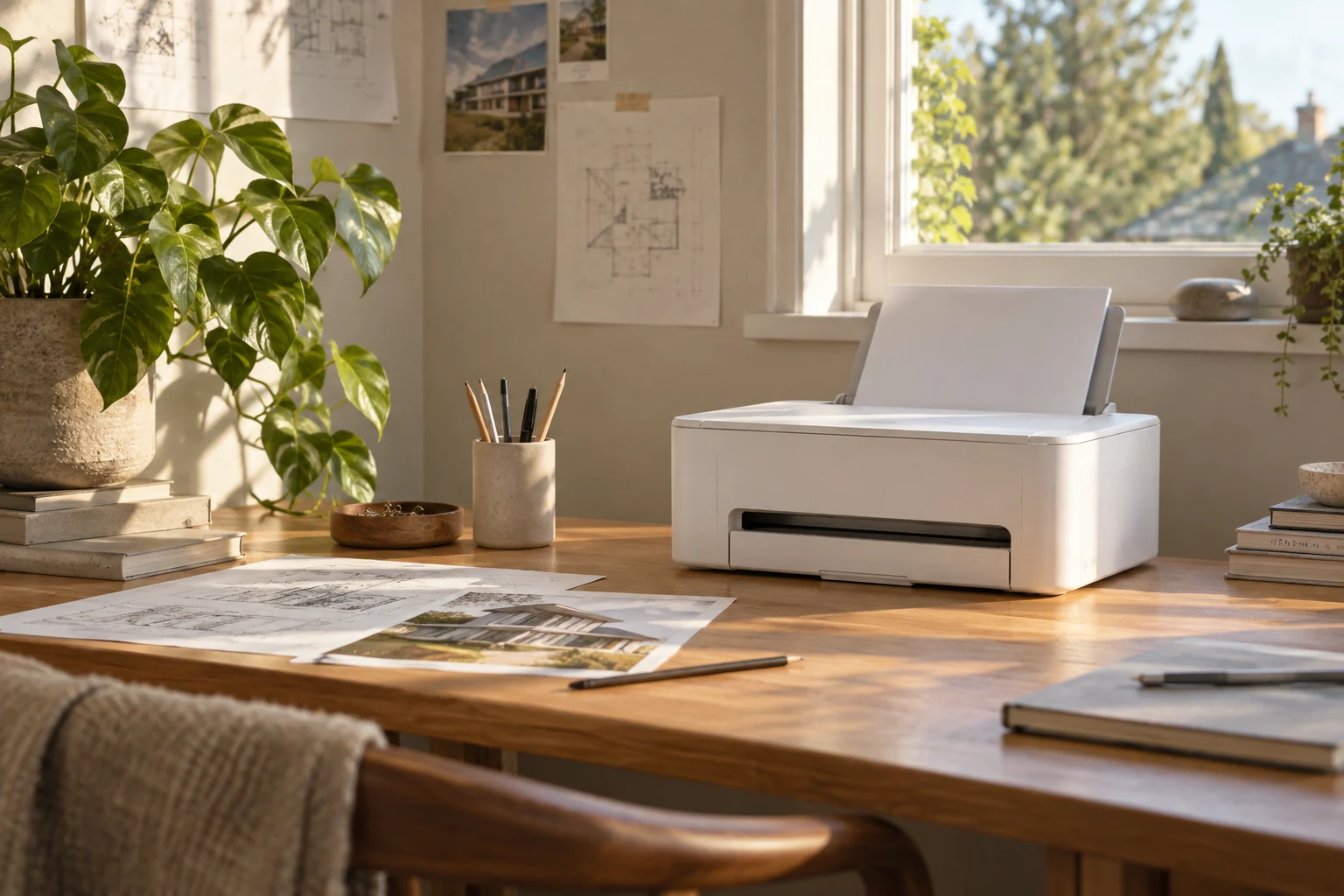
A good photo print starts with the original file, the right paper and a carefully checked preview.
Start with the file and the finished size
Open the original photo rather than a compressed version saved from a messaging app. Decide the final print size before you crop: a square image and a 4-by-6-inch sheet have different proportions.
Check the print preview for cut-off heads, dates or captions. Borderless printing can enlarge an image slightly to cover the edges of the paper, so leave breathing room around anything that must stay visible.
Treat paper as part of the printer
Use inkjet-compatible photo paper supported by the model. A glossy coating and a matte surface produce different-looking results. Choose a finish for the way the print will be viewed, handled or framed.
Select the matching paper type and size in the print dialog. The paper setting affects how the printer lays down ink. Loading photo paper while leaving the driver set to plain paper can undermine the result.
Proof once, then print the set
Print one representative photo before a large batch. Include a face, a dark area and a bright highlight if possible. Look at the result in ordinary room light, then make one adjustment at a time.
A luminous phone screen can make a photo appear brighter than paper. Avoid immediately increasing every color control. Start by checking the file, paper profile and quality setting, then decide whether the image itself needs editing.
Buy for your kind of photography
For family albums and school projects, convenience features such as a dedicated photo tray may be valuable. If you plan exhibition prints or need precise color control, compare specialist photo systems and supported media before choosing an everyday all-in-one.
Verify borderless sizes, paper weight limits and ink arrangement on the exact model. A large advertised dpi figure alone does not describe color range, paper handling or the final appearance of your photograph.
Sources & further reading
HP photo and print-quality guidance ENVY Inspire 7955e media specificationsReady to put it into practice?
Explore printers